Quick Access Area
The Quick Access panel provides a central place to reach your most important and recently used content without navigating through locations and folders. It is accessible from the left drawer by clicking the Quick Access icon.
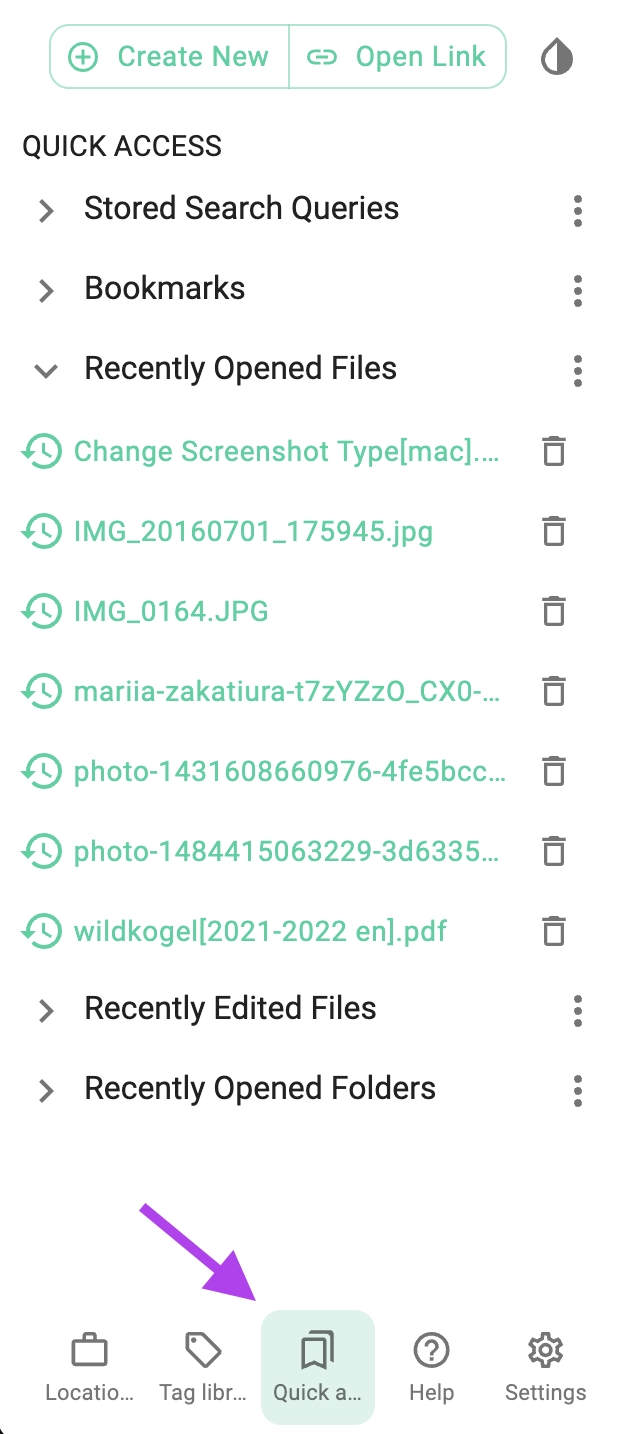
The panel is organized into the following sections:
Stored Search Queries
Saved search queries allow you to re-run frequent or complex searches with a single click. Queries are created from the search interface and appear here for quick reuse.
For details on creating and managing stored queries, see the Stored Search Queries section.
Bookmarks
PROA list of files and folders you have explicitly bookmarked for easy access. Bookmarks persist across sessions and are independent of your current location or folder.
For details on adding and managing bookmarks, see the Bookmarks page.
Recently Opened Files
Displays a chronological list of files you have recently opened in the preview area. This is useful for returning to files you were working with earlier without remembering their exact location.
Recently Edited Files
Displays a list of files you have recently modified using one of TagSpaces' built-in editors (Markdown, HTML, Text, or JSON). This section helps you quickly find documents you were actively editing.
Recently Opened Folders
Displays a list of folders you have recently visited or opened in the folder details panel. This makes it easy to jump back to folders you were browsing earlier.
Entry Context Menu
Each entry in any of the Quick Access sections has a context menu with the following options:
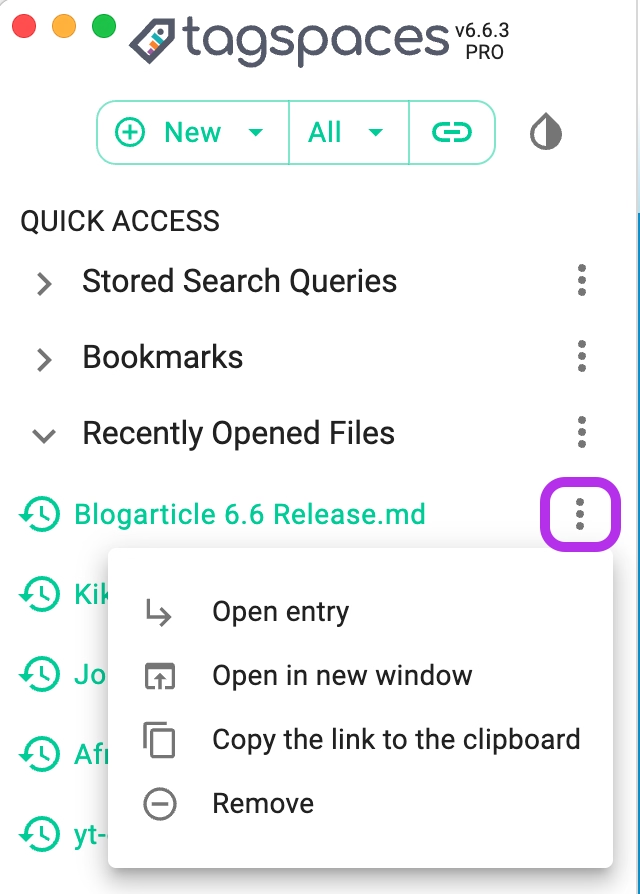
- Open entry — opens the file or folder in the current application window.
- Open in new window — opens the entry in a new application window, or a new browser tab in the web version.
- Copy link to clipboard — copies an internal link to the entry that can be shared with collaborators who have access to the same files.
- Remove — removes the entry from the list.
Configuring Recent Entries
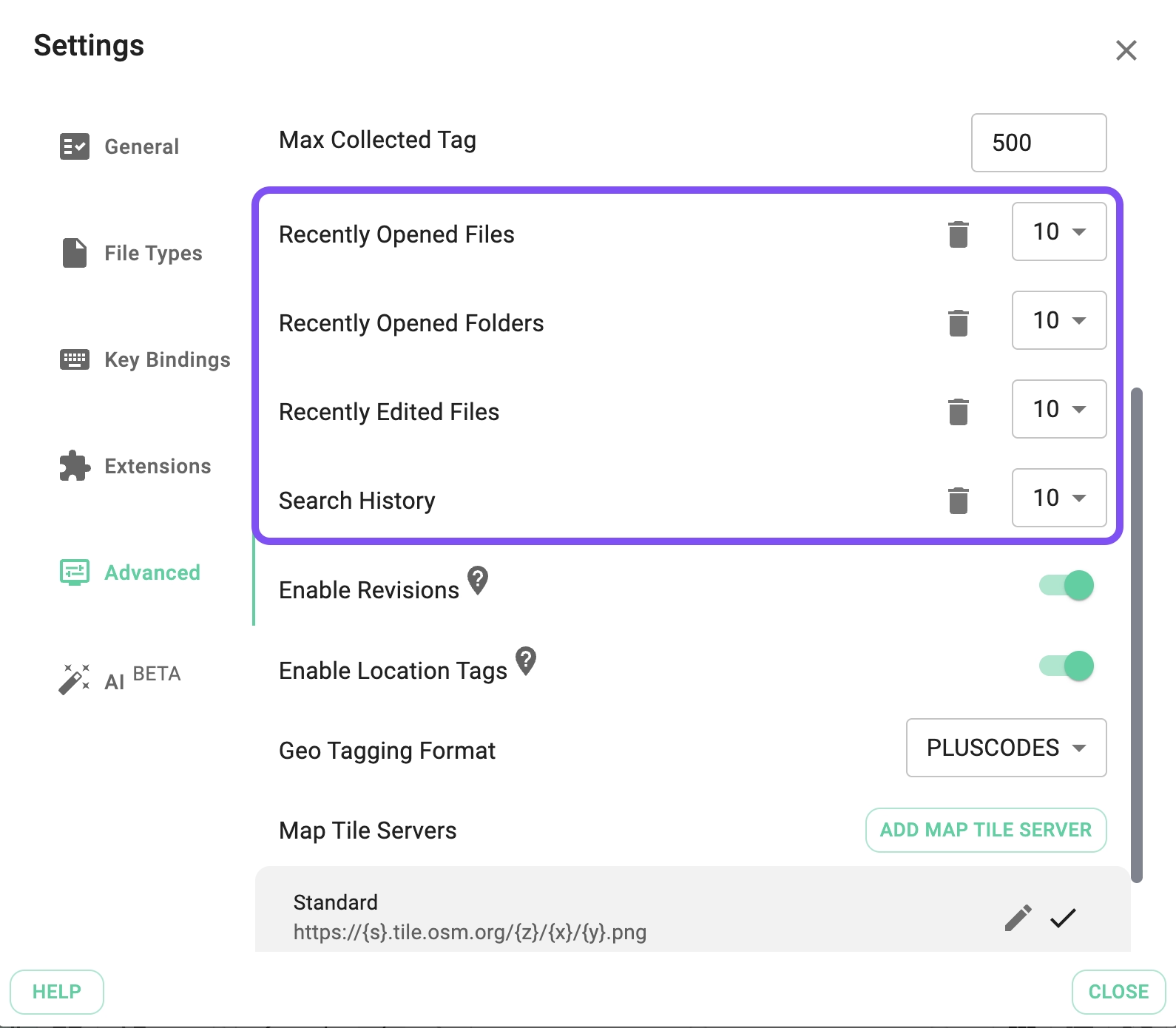
The number of recently tracked files and folders can be adjusted in the Advanced tab of the Settings. From here you can also:
- Clear the history for each recent entries section individually.
- Disable tracking by selecting the disabled option in the corresponding dropdown, which stops the collection of recent entries entirely.