Calendar Perspective
The Calendar Perspective offers a powerful and intuitive way to organize your files and folders based on time. Instead of browsing through long lists or deep folder structures, you can view your content laid out on a calendar—making it perfect for tracking projects, managing events, reviewing timelines, or organizing content by date.
Depending on the selected grouping option, files and folders are automatically placed on the calendar, giving you a clear, time-based overview of your data.
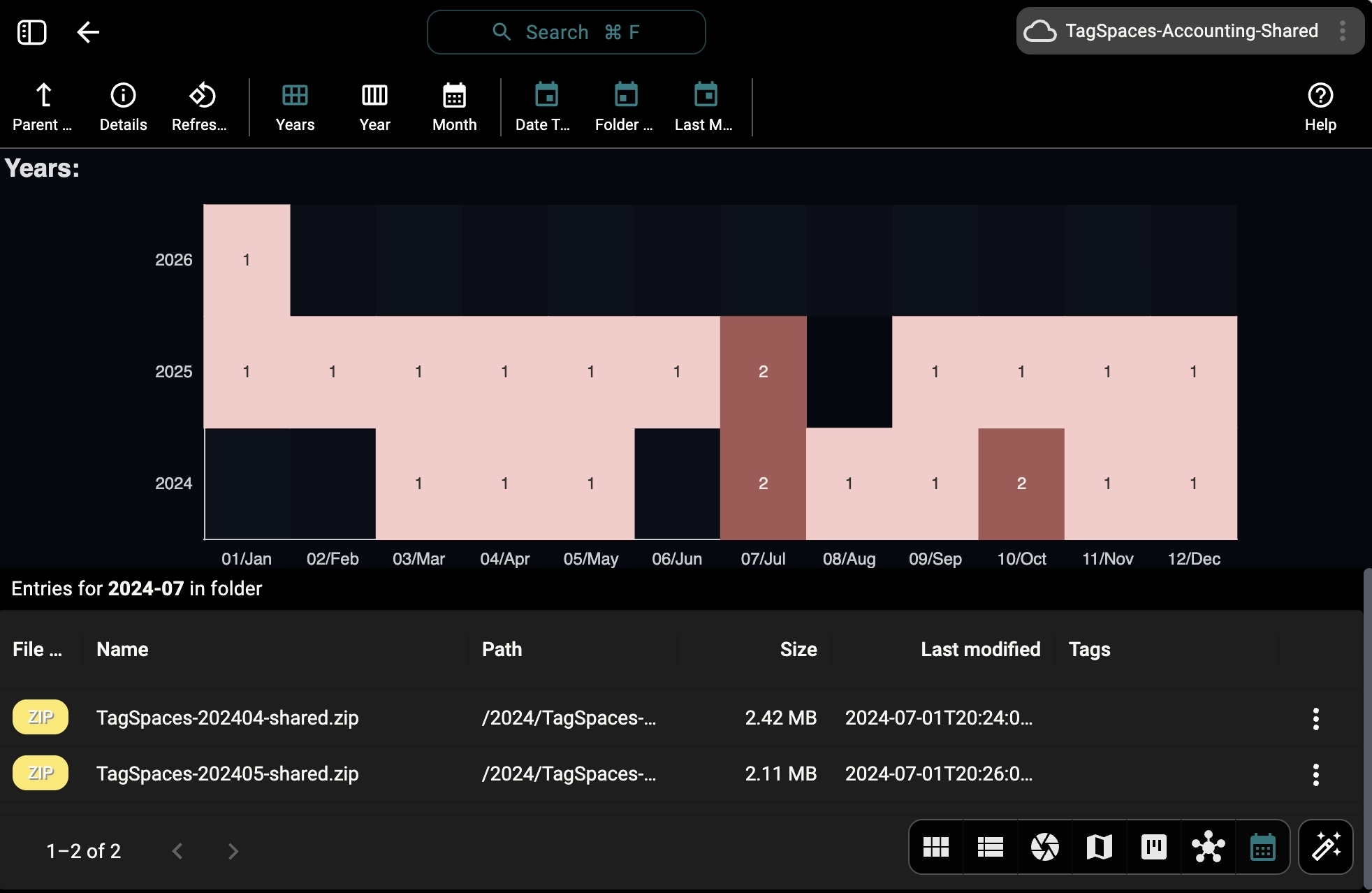
Grouping Filters
The Calendar Perspective currently supports four different grouping filters. These determine how files and folders are assigned to dates on the calendar. You can have more than one active filter, as shown in the next screenshot.
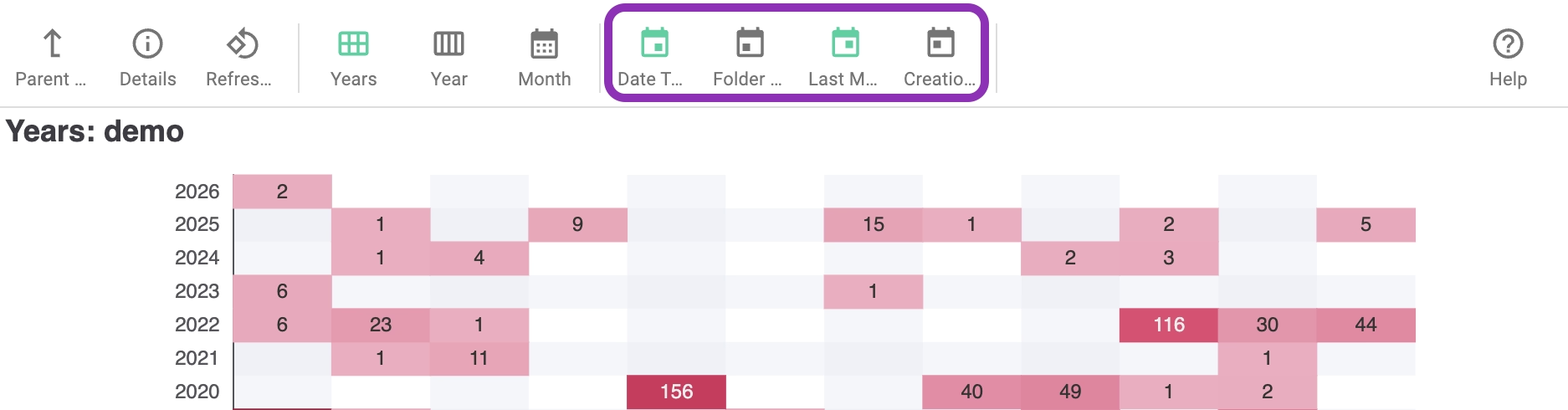
Your selected grouping filters are saved per folder. This means that the next time you open the same folder using the Calendar Perspective, TagSpaces will automatically restore your preferred layout—saving you time and keeping your workflow consistent.
Group by Date Tags
This option groups files and folders using date tags. A typical date tag looks like 20260108, which represents January 8, 2026.
Date tags are available as smart tags in the Tag Library and allow you to precisely timestamp files and folders with dates and times.
Learn more about date tags here: Date and Time Tagging
Group by Folder Name
With this filter, files and folders are grouped based on the name of their parent folder, as long as the folder name represents a valid date, month, or year.
Supported formats include:
20260108– January 8, 2026202601– January 20262026– The year 2026
This is especially useful if your existing folder structure already follows a date-based naming convention.
Group by Last Modified Date
This filter organizes files and folders according to the last modified date. It’s a great way to quickly see when content was last updated or to track recent activity.
Group by Creation Date
This option groups files and folders by their creation date, helping you review when content was originally created.
Creation dates are not available for object storage locations (such as S3), as these systems typically do not support creation timestamps.
Views
Once your files are grouped, you can explore them using different calendar views—each offering a unique level of detail.
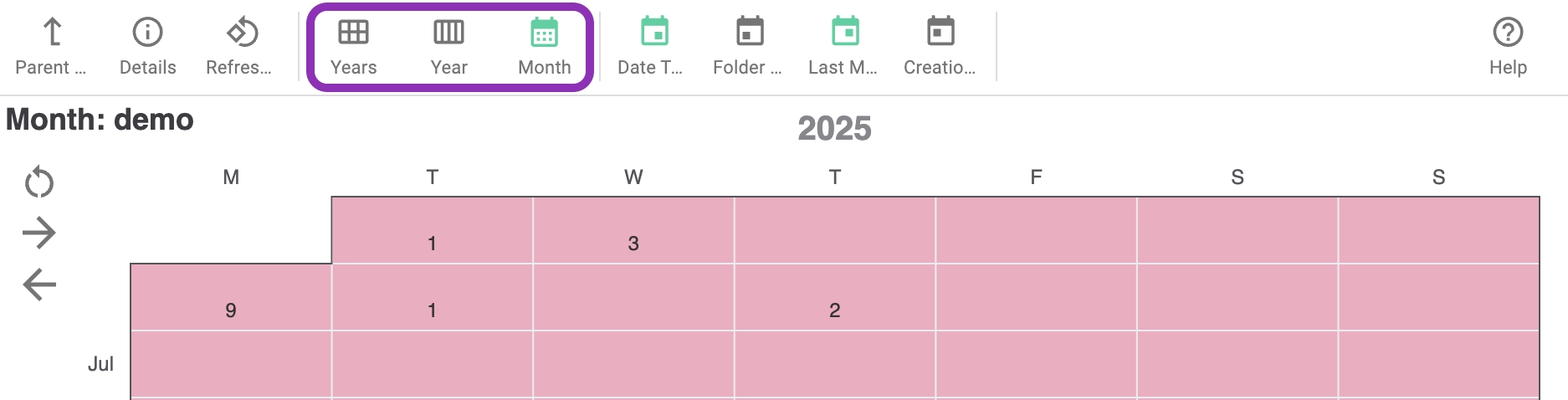
Your selected view is saved per folder. This means that the next time you open the same folder using the Calendar Perspective, TagSpaces will automatically restore your preferred layout—saving you time and keeping your workflow consistent.
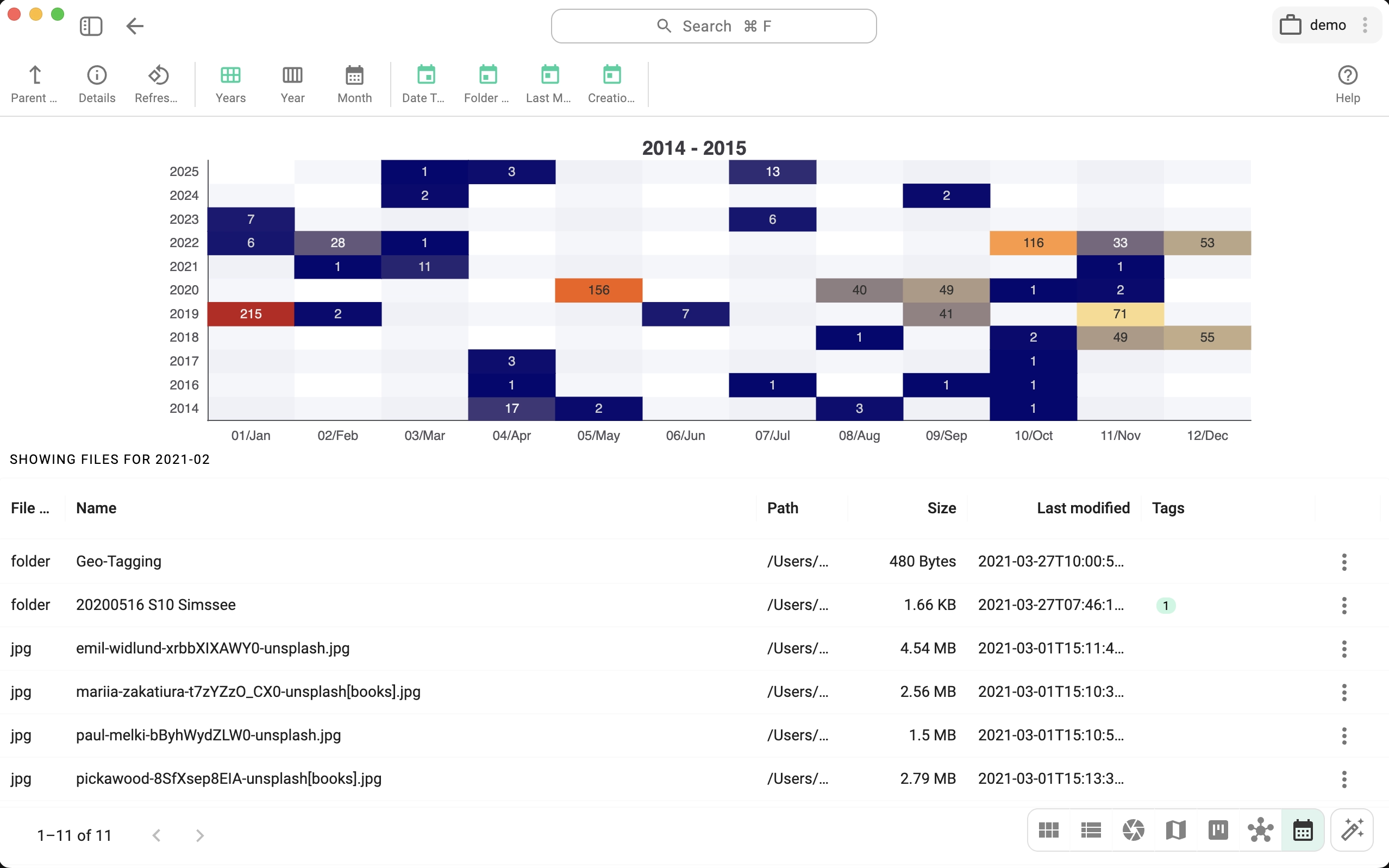
Years View
The Years View shows an overview table where:
- Rows represent years
- Columns represent months
Each cell displays the number of files and folders associated with that month. Darker colors indicate a higher number of entries. Clicking a cell reveals the related items.
Year View
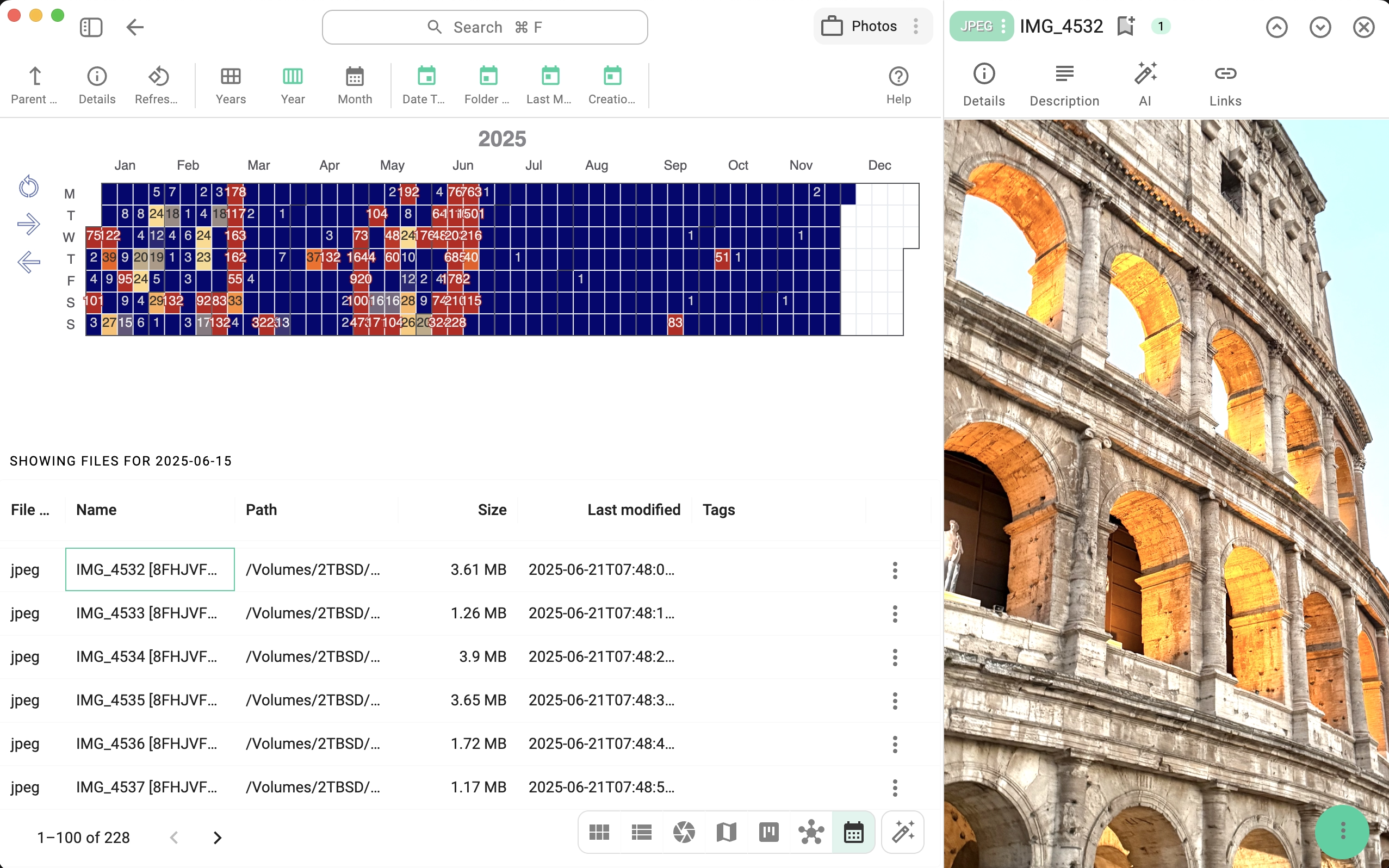
The Year View displays a full calendar for a single year:
- Rows represent days of the week
- Columns are grouped by months
Each cell shows how many files and folders belong to a specific day. Color intensity reflects the number of entries. Use the navigation arrows on the left to switch between years.
Month View
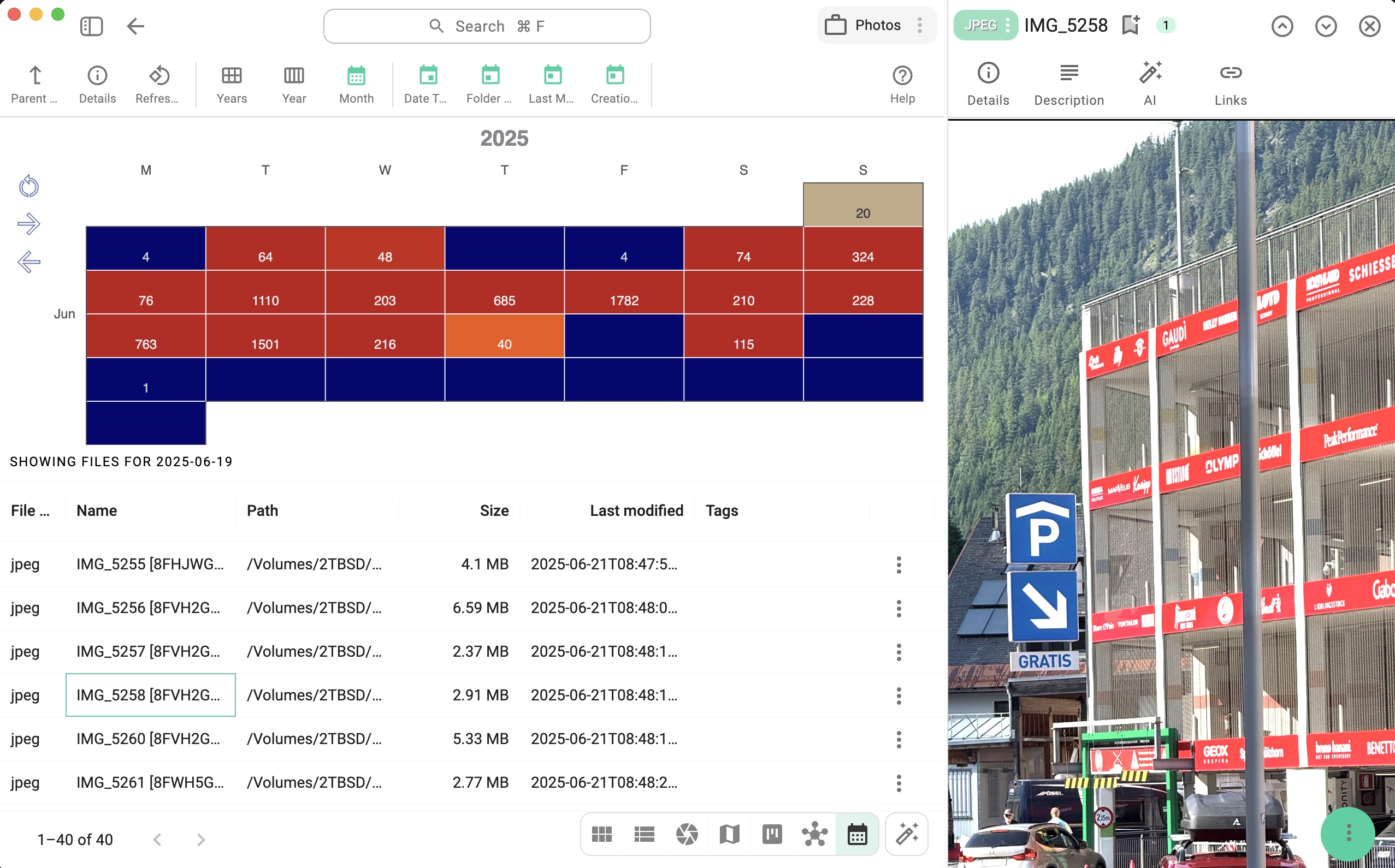
The Month View focuses on a single month:
- Columns represent days of the week
- Each cell shows the day of the month and the number of associated files
Clicking a day displays all related files and folders. Use the navigation arrows on the left to move between months.
Why Use the Calendar Perspective?
The Calendar Perspective makes it easy to:
- Understand your files in a time-based context
- Track progress and activity over days, months, or years
- Navigate large collections of content more intuitively
Whether you’re managing projects, reviewing archives, or organizing personal files, the Calendar Perspective gives you a clear and structured view of your data—right when it matters most.