List Perspective
The List Perspective displays files and folders as rows in a list, providing a compact and information-dense view. It is well-suited for working with large numbers of files where you need to quickly scan metadata like tags, descriptions, sizes, and modification dates.
The list perspective supports a zoom buttons allowing you to adjust the information density to your preference.
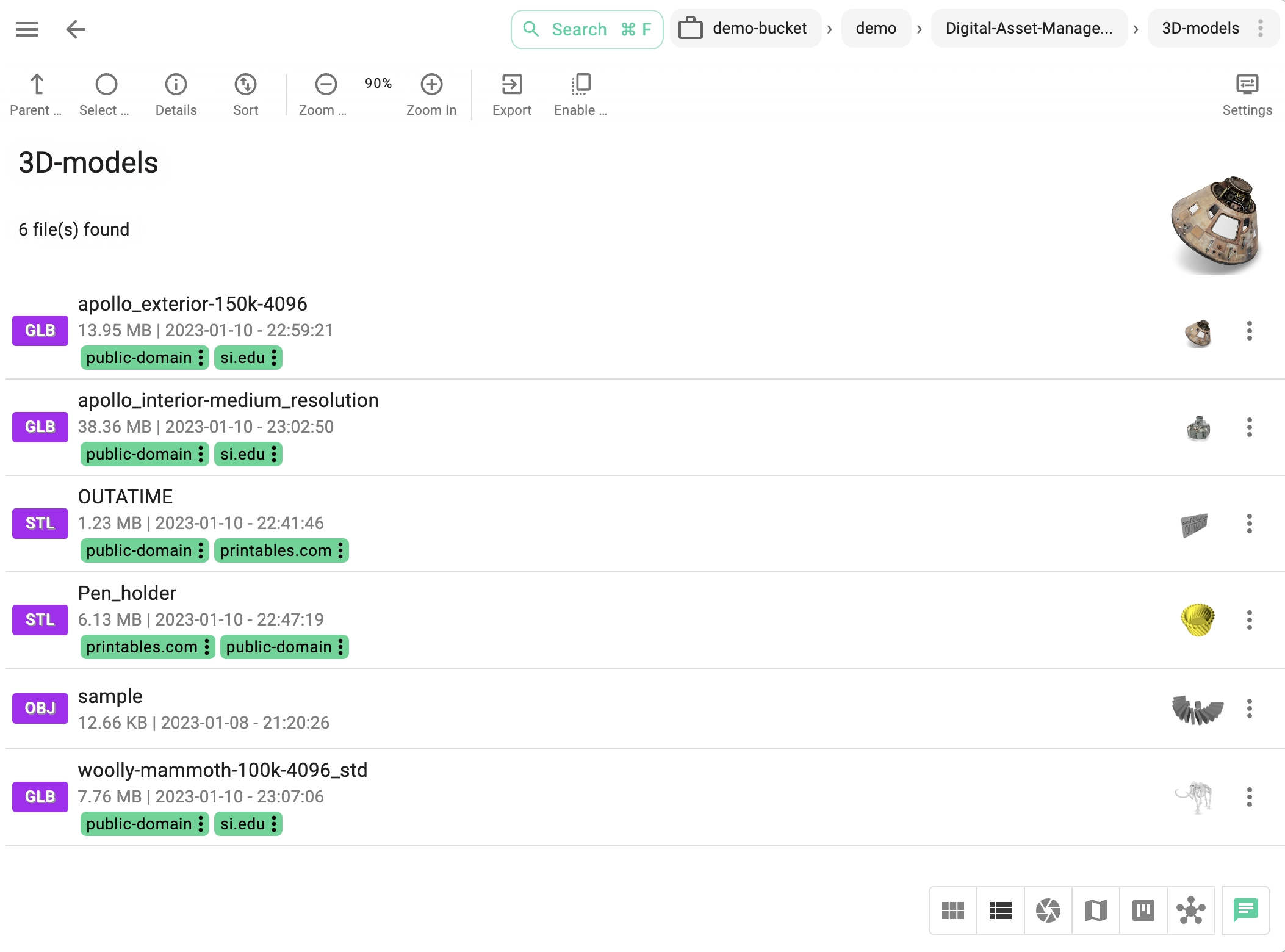
Row Information
Each row in the list displays the following information:
- File extension — a color-coded icon representing the file type. See color-coded file extensions for details.
- Folder icon — rows representing folders show a folder icon instead of a file extension.
- Title — the filename without the extension or tag information.
- Description — the file or folder description, if one has been set.
- Tags — all tags applied to the entry, displayed with their configured background and text colors. See Tag Library for more on tag colors.
- Size — the file size in a human-readable format.
- Date modified — the time the file was last modified.
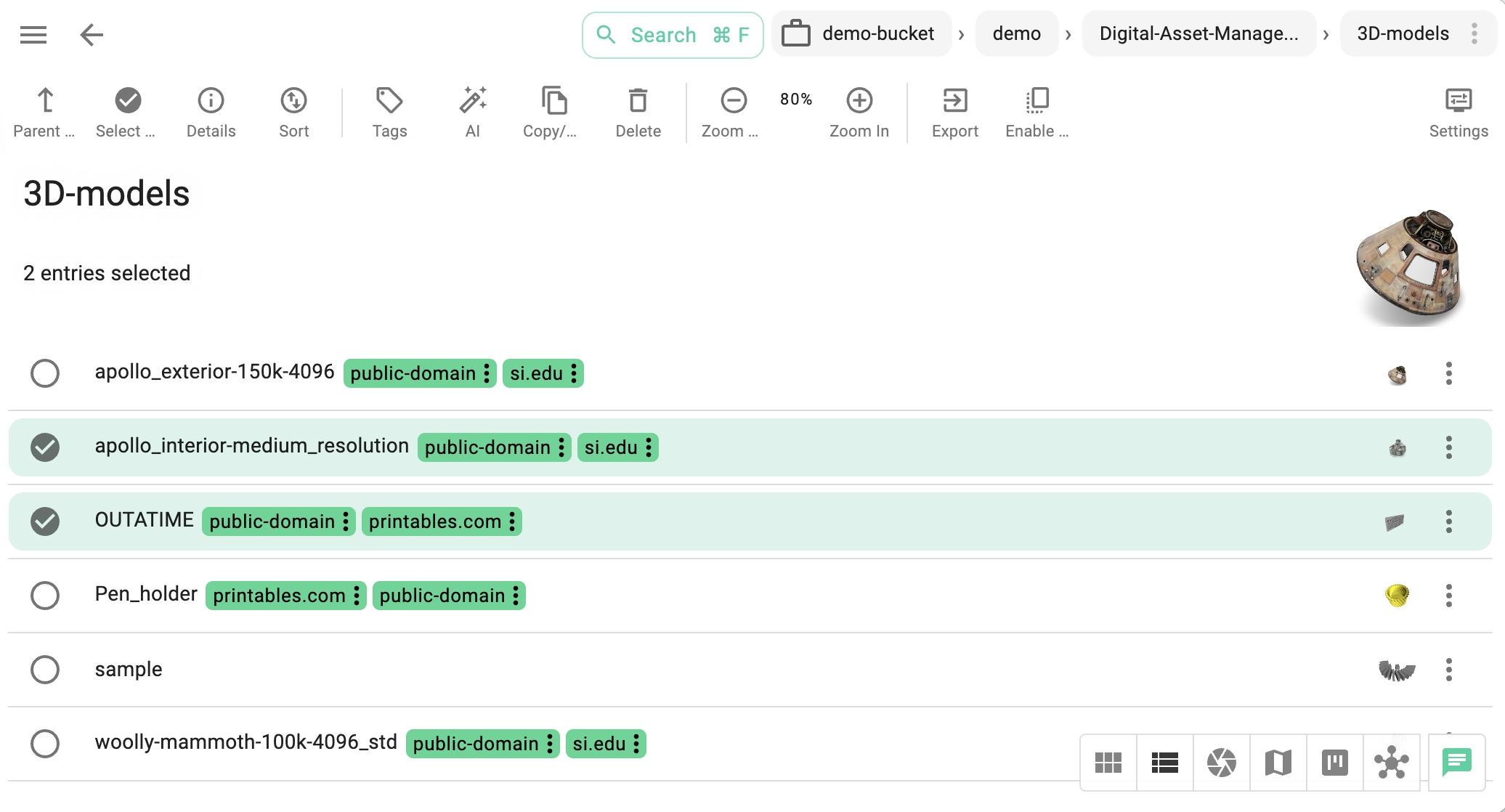
Selecting Files and Folders
You can select multiple entries using the following methods:
- Hold
CTRL/⌘and click to select individual entries - Hold
SHIFT, click the first entry, then click another to select a range - Use Select All in the toolbar or press
CTRL+A/⌘+A - Click the checkbox on the left side of each row
Toolbar
The toolbar at the top of the perspective provides the same actions as the Grid Perspective toolbar, including:
- Parent Folder — navigate to the parent directory (
BACKSPACE) - Select All — select or deselect all visible entries
- Details — open the properties of the current folder
- Sort Files — sort by title, size, date modified, first tag, file extension, or random order
- Tags — manage tags for selected entries
- Copy / Move — copy or move selected files and folders
- Delete — delete selected entries
- Zoom In / Out — switch between compact, default, and large modes
- Export as CSV — export file metadata to a CSV file
- Perspective Settings — open the settings dialog
Context Menus
Right-clicking on a file or folder opens its context menu. The available actions are the same as in the Grid Perspective, including open, rename, tag, move, copy, delete, and share operations.
Right-clicking on an empty area opens the current folder context menu.
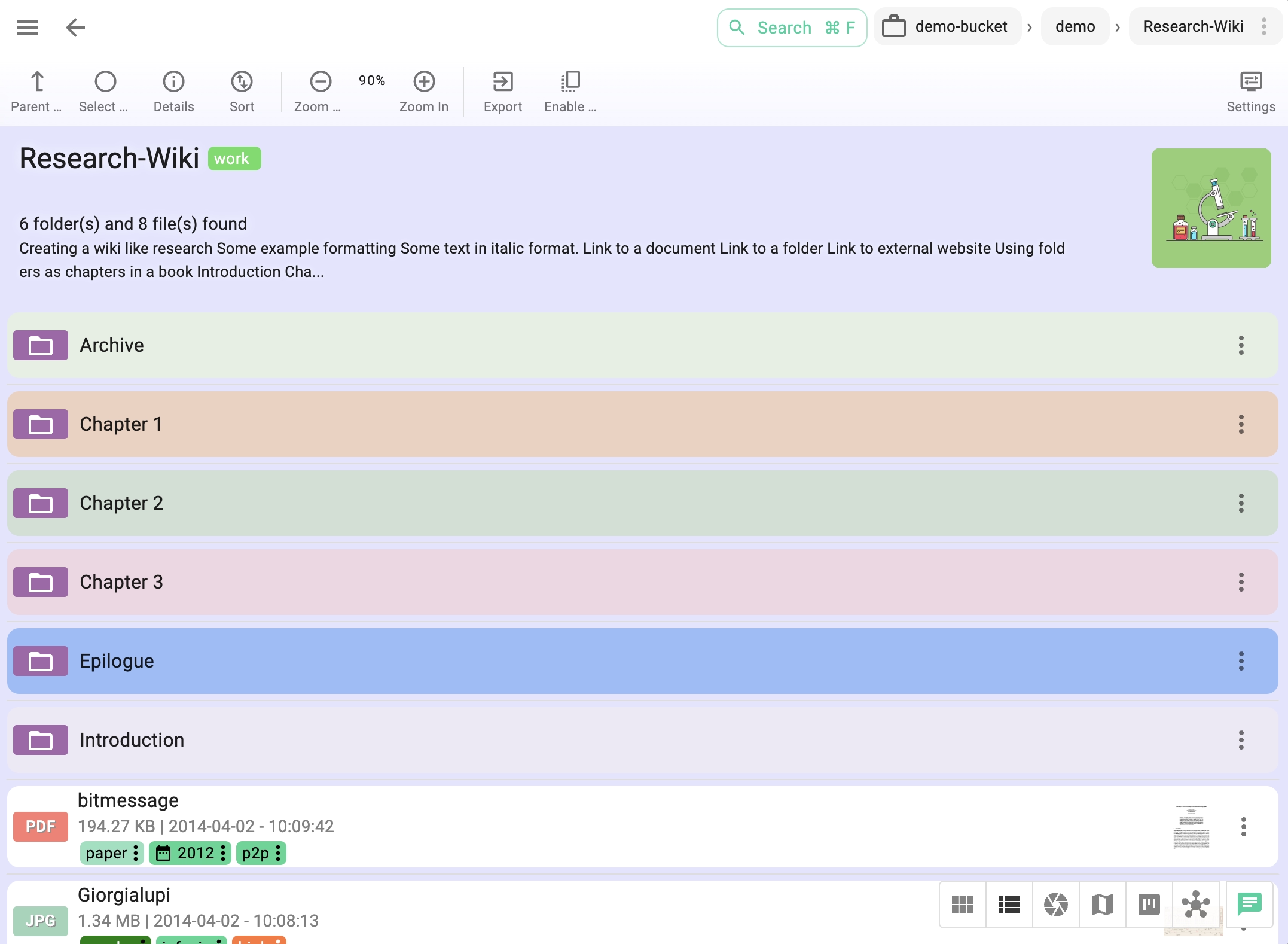
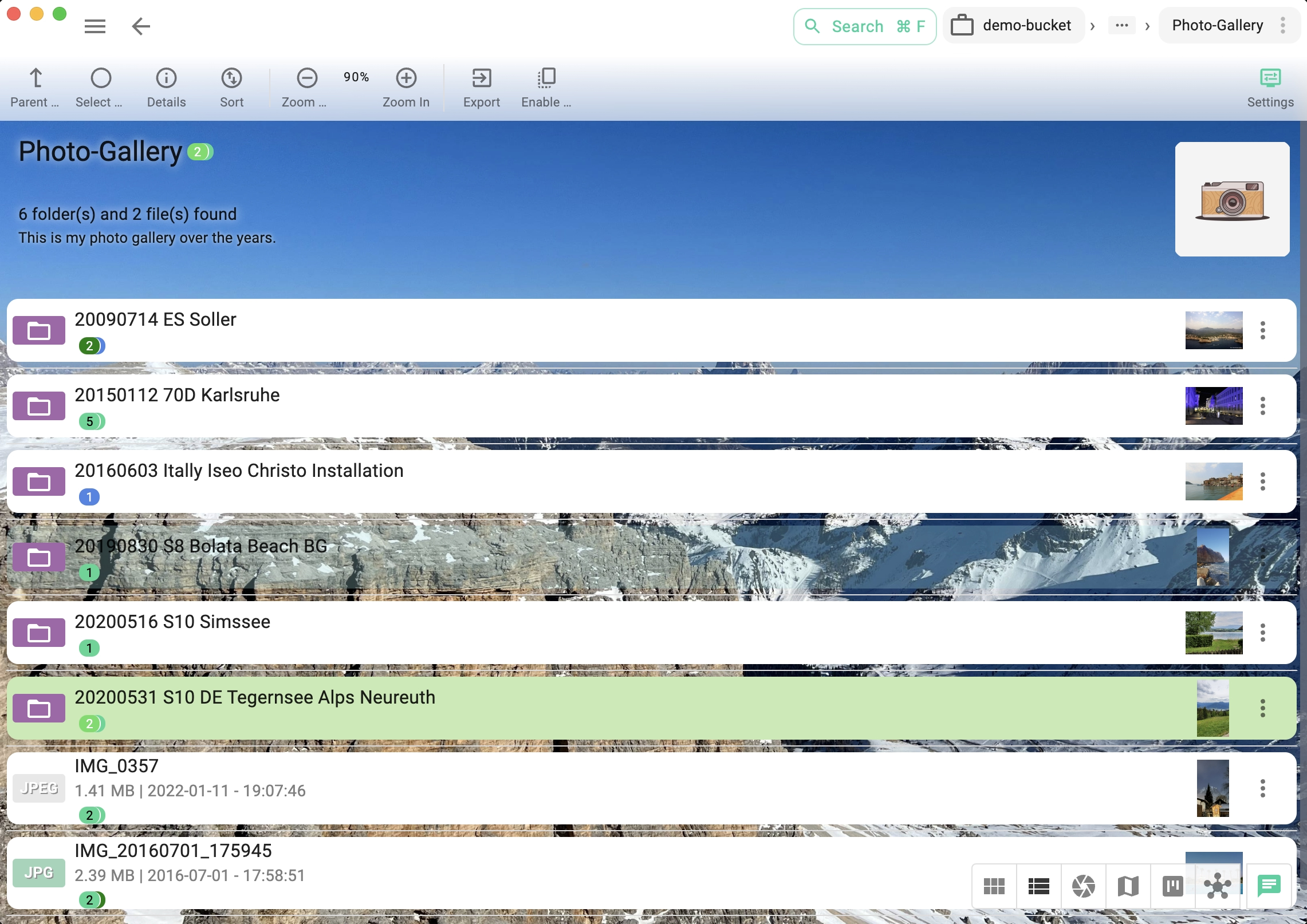
Folder Customizations
The list perspective supports folder customizations such as custom background colors and background images.
Perspective Settings
The settings dialog can be opened from the toolbar. The available options are the same as in the Grid Perspective settings:
- Show Folders — toggle visibility of subfolders
- Show Tags — toggle between full tag display and a compact indicator showing only the tag count and colors
- Show Descriptions — show or hide file and folder descriptions
- Toggle Thumbnail Modes — switch between "cover" and "contain" thumbnail modes
- Sort — choose the default sorting for the perspective
- Single Click Behavior — configure whether a single click opens a file internally, externally, or only selects it
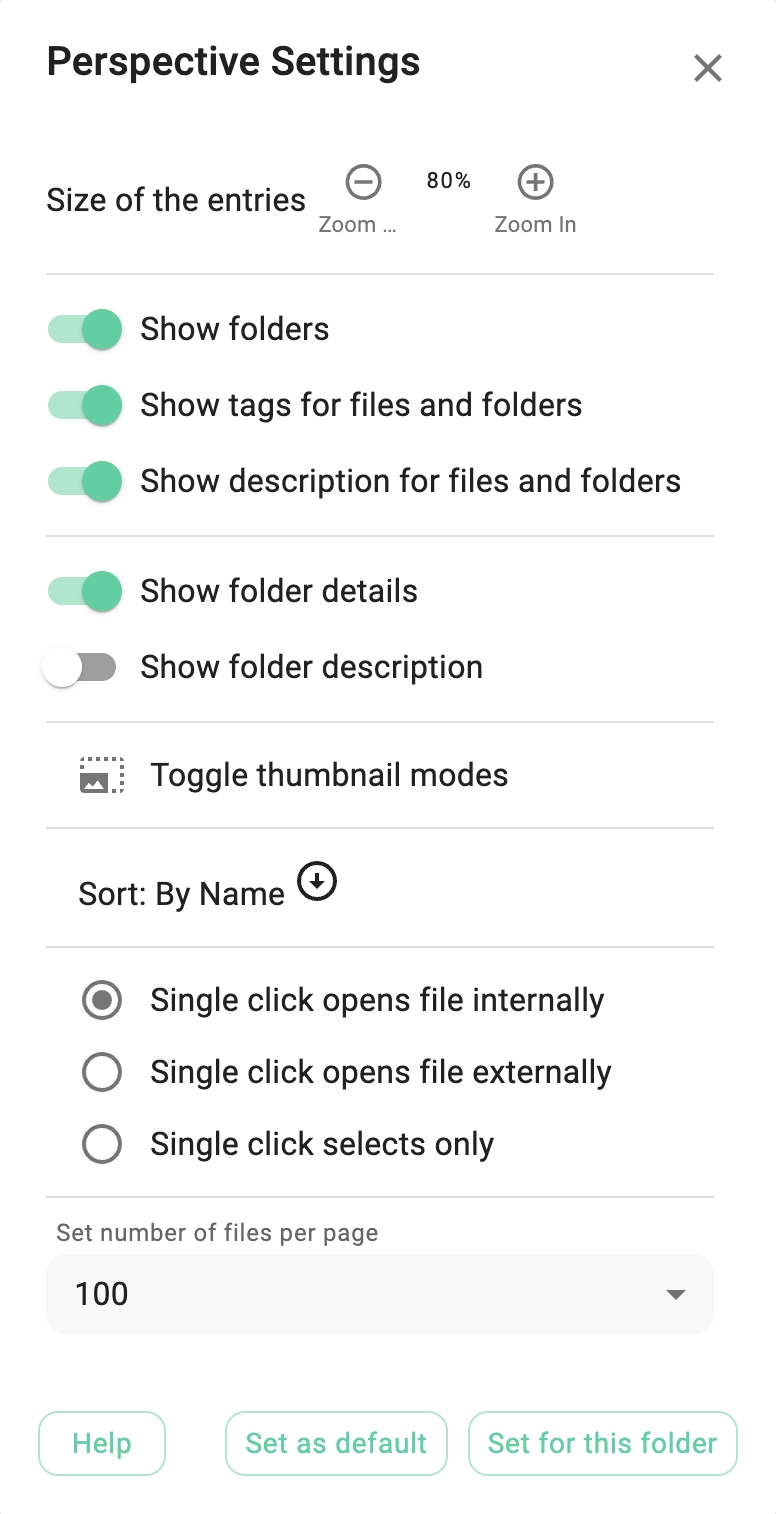
Settings can be saved as the default for all folders or applied only to the current folder, the same way as in the Grid Perspective.